AutoBrowser — Setting up shortcuts
Every tile in the picker carries a key, shown as a badge. The chosen mode decides that key — and what the keyboard does while the picker is open.
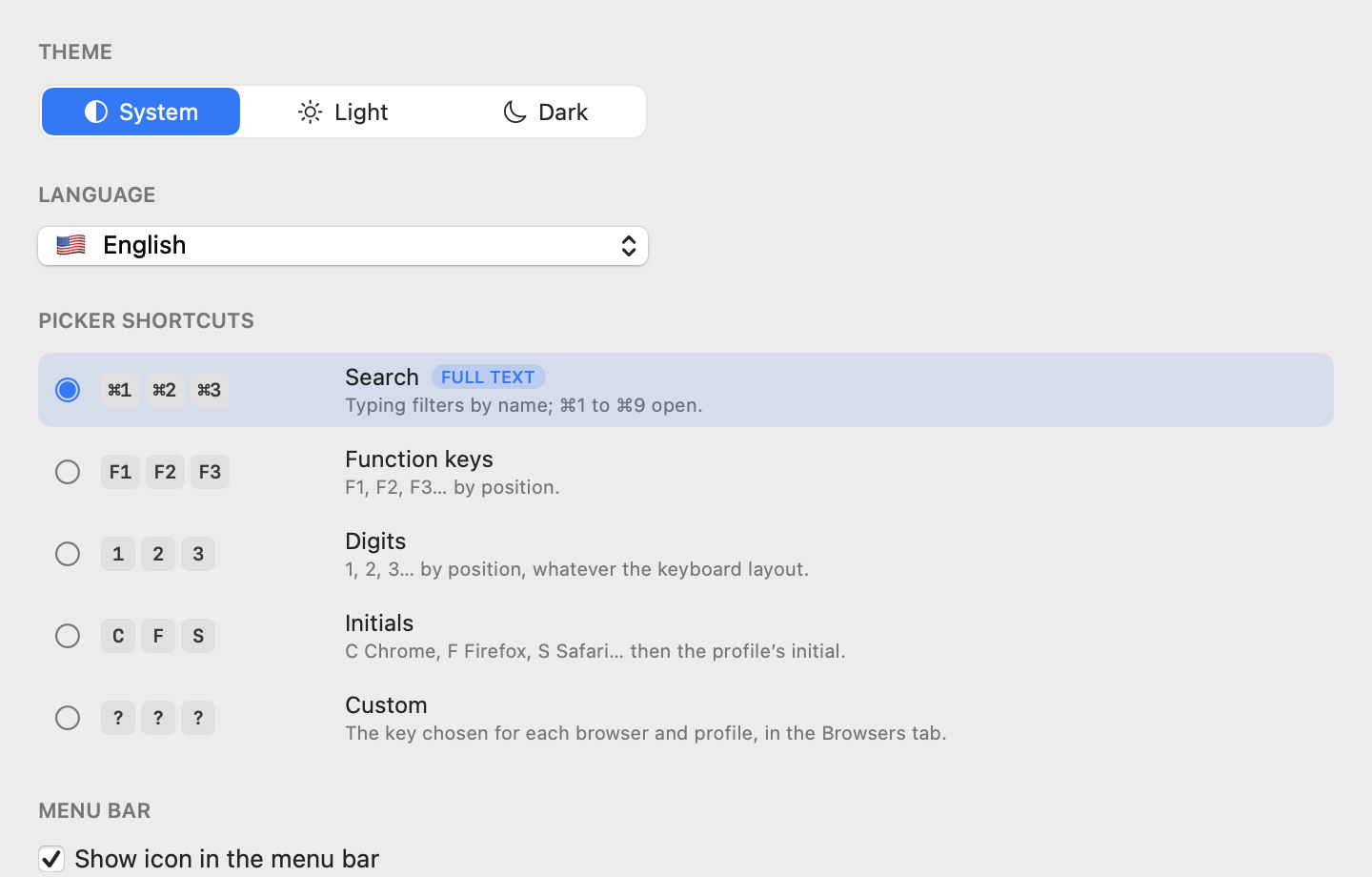
Choose the mode
Settings → Appearance tab → Picker shortcuts section. Each row shows the keys it will put on the tiles: you see the choice before making it.
| Mode | Badges | How it works |
|---|---|---|
| Search |
⌘1 ⌘2 ⌘3
|
Typing filters the tiles; ⌘1 to ⌘9 open. |
| Function keys |
F1 F2 F3
|
By position, up to F12. |
| Digits |
1 2 3
|
By position. The physical key counts: on an AZERTY keyboard, & is 1, é is 2… |
| Initials |
C F S
|
C Chrome, F Firefox, S Safari, E Edge, B Brave… then the profile's initial. |
| Custom | your choice | The key you assign to each browser and profile. |
Search is the only mode that lets you type text: what you type is a full-text search over browser names as well as profile names — typing a profile's name therefore brings up its browser. In the other modes, each key opens straight away.
Assign custom keys
In Custom mode, a field appears on every row of the Browsers tab: type a letter or a digit into it. Clear the field to remove the key; a profile without a key takes its browser's.
When several destinations share a key
In Initials or Custom mode, two profiles of the same browser may carry the same letter. It then groups them on the second level: C shows Chrome's profiles, then D opens the one named “Damien”.
Keys that always work
Whatever the mode:
| Key | Action |
|---|---|
⌘1 … ⌘9
|
Open the tile at that position |
← → ⇥
|
Move the selection |
↓ ↑
|
Show the profiles, then go back to the browsers |
⏎ |
Open the selection |
⌘C |
Copy the link and close |
⎋ |
Close without opening |
No picker, no shortcuts
The section is dimmed as long as rule-less links do not go to the picker: if the fallback is set to Open directly in (General tab), the picker never appears, and its shortcuts have nothing to drive.
See also: Picker · Browsers and profiles · Settings