AutoBrowser — Overview
AutoBrowser is a link router for macOS. It registers as the default browser, intercepts every link you open — from an email, a chat app, a document — then decides where to send it: the right browser, and the right profile in that browser.
Guides
- Installation and macOS permissions — Install, become the default browser, allow profile reading.
- Choosing on the fly: the picker — What shows up for every rule-less link, and how to answer from the keyboard.
- Configuring browsers — Order, visibility, colours and profiles of each browser.
- Setting up shortcuts — The key each tile carries, and the mode that decides it.
- Remembering a choice — Keep a destination for a domain, then refine the rule it created.
Key concepts
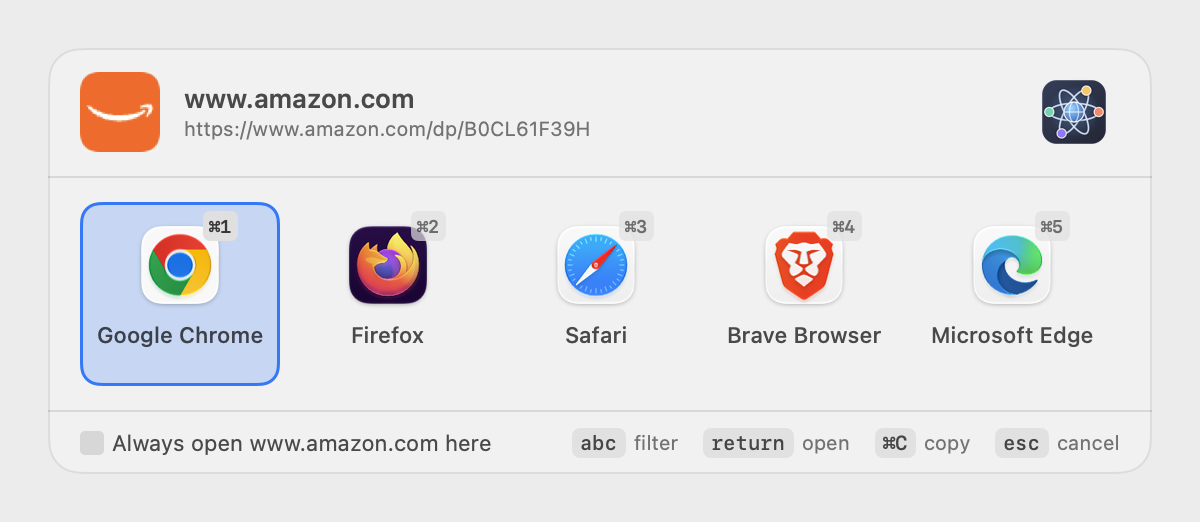
- Picker — the small window that opens in the middle of the screen when no rule decides for you. A click or a key sends the link to the chosen browser — see Picker.
- Rule — a condition (domain, URL pattern, source application) tied to a destination. When a rule matches, the link goes straight through, without showing anything — see Rules.
- Destination — a browser, optionally narrowed down to one of its profiles (Chrome, Brave, Edge, Vivaldi, Opera, Firefox, Zen…).
- Profile — the separate spaces of a single browser (personal, work, client…). AutoBrowser detects them and can open a link directly in one of them — see Browsers and profiles.
What AutoBrowser does with each link
-
Expanding shortened links —
t.co,bit.ly,lnkd.in,youtu.be… are resolved, so that rules apply to the real destination. -
Stripping tracking parameters —
utm_*,fbclid,gclid… are removed; parameters the page needs are kept. - Rules — the first enabled rule that matches sends the link to its destination.
- Otherwise — the picker opens, or the link goes to a fallback browser, depending on your settings.
Requirements
- macOS 14 (Sonoma) or later.
- At least one browser installed.
Getting started
- Install AutoBrowser in the Applications folder, then launch it. Its icon appears in the menu bar; the app has no Dock icon.
- Make it the default browser: General tab of the settings → Set as default…, or the menu bar menu → Set as default browser…. macOS asks for confirmation.
- Allow profile reading (optional, but recommended): see Browsers and profiles.
- Click a link anywhere: the picker opens. Choose a browser; check Always open domain here to create the rule along the way.
- Then fine-tune your rules in the Rules tab — see Rules.
The menu bar menu
| Item | Effect |
|---|---|
| Default browser / Set as default browser… | Shows the status, or asks macOS for it. |
| Open link from clipboard (⌘V) | Handles the copied link as if it had been clicked. |
| Settings… (⌘,) | Opens the settings. |
| Online Help (⌘?) | Opens this documentation in the interface language (English if it isn't translated). |
| Report a Bug or Suggest an Idea… | Contact form: creates a request in the project's public issue tracker — see Settings. |
| Credits… | Version, supporting the project, publisher. |
| Quit AutoBrowser (⌘Q) | Closes the app. Links are no longer routed while it is not running. |
The icon can be hidden (Appearance tab): in that case, relaunch AutoBrowser from the Finder or Spotlight to open its settings.
See also: Picker · Browsers and profiles · Rules · Settings · Troubleshooting