AutoBrowser — Installation and macOS permissions
Two steps make AutoBrowser operational: make it the default browser, then — if you use profiles — allow it to read them.
Requirements
- macOS 14 (Sonoma) or newer.
- At least one browser installed.
Install
- Drag AutoBrowser into the Applications folder.
- Launch it. Its icon appears in the menu bar; the app has no Dock icon.
- On first launch, Settings open on their own as long as AutoBrowser is not the default browser.
One copy at a time. macOS routes links to the copy it has registered. If another copy is lying around (Downloads, a working folder), delete it: links could go there, and the copy you are configuring would look inert.
Become the default browser
Without that status, AutoBrowser receives no link at all: macOS decides who gets them.
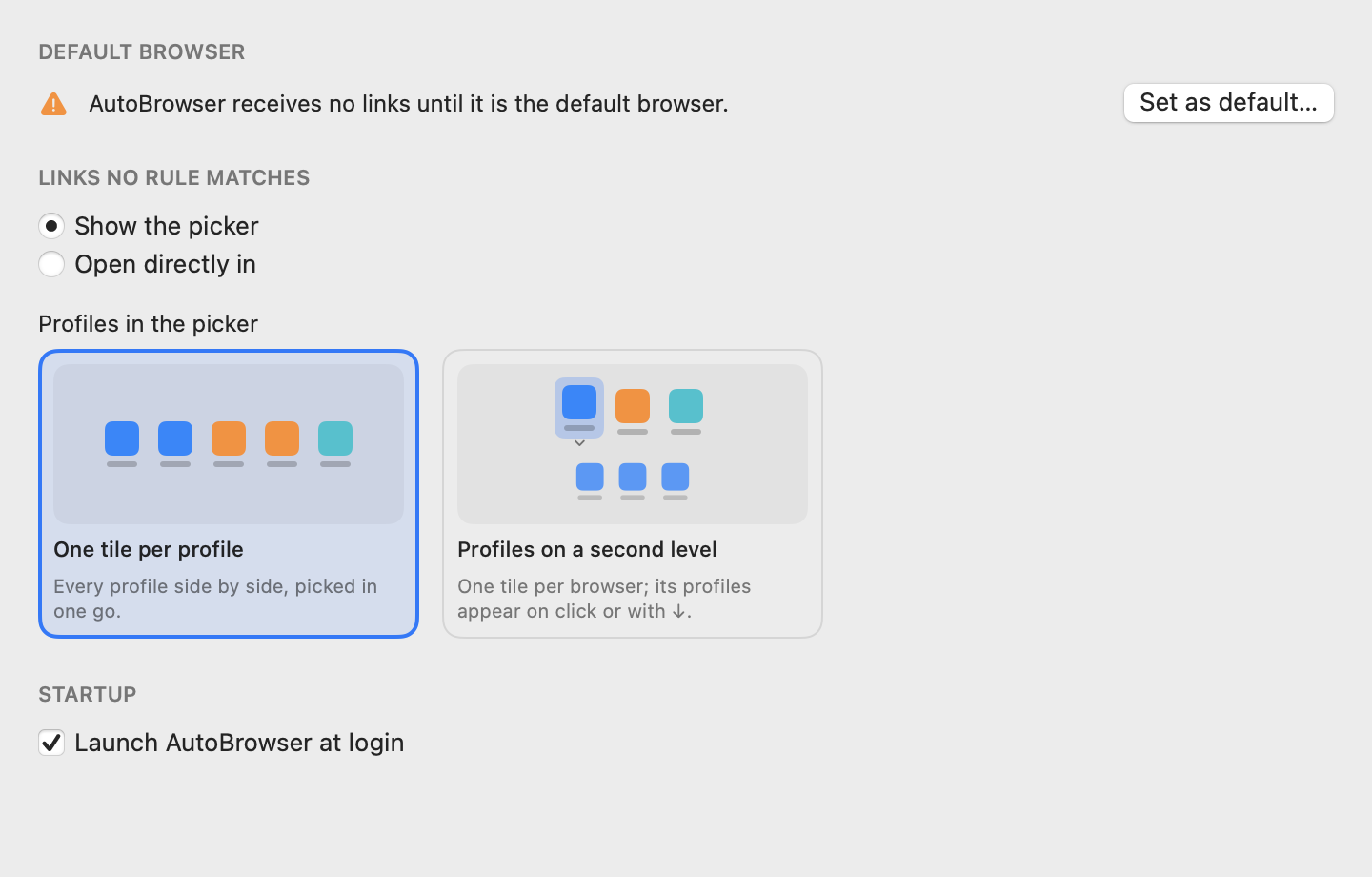
- Open Settings (menu bar icon → Settings…, or
⌘,). - General tab, Default browser section: click Set as default….
- macOS asks for confirmation: accept.
The same choice is offered straight from the menu bar menu. To undo it, pick another default browser in System Settings → Desktop & Dock.
Allow profile reading
To list a browser's profiles (personal, work, client…), AutoBrowser reads one of that browser's files. Since macOS 14, reading another app's folder requires your consent: without it AutoBrowser works, but shows no profile and says so in a banner.
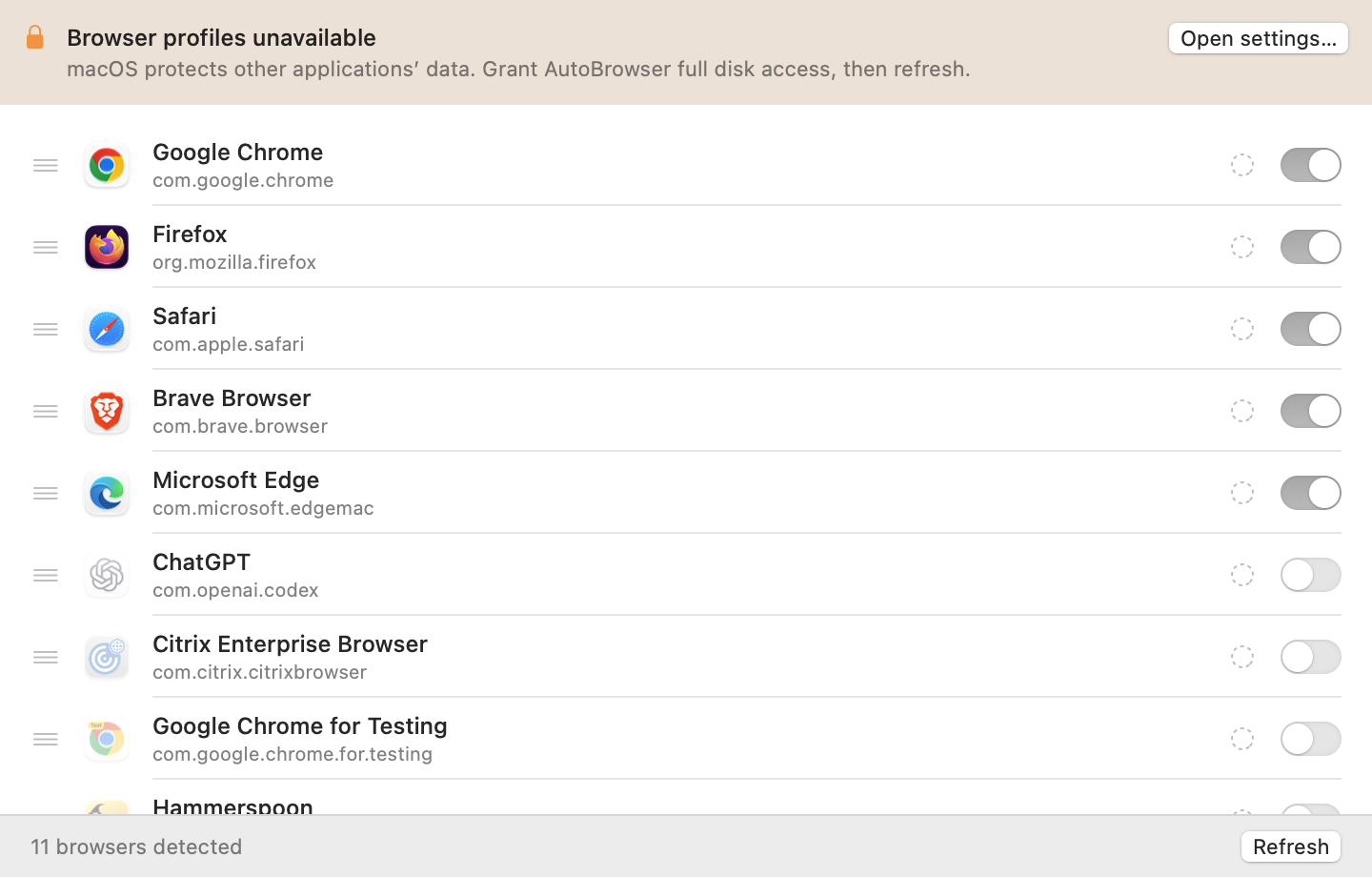
- Click Open Settings… in the banner. System Settings opens on Privacy & Security → Full Disk Access, and a Finder window shows AutoBrowser.
- Turn AutoBrowser on in the list. If it is not listed, click + and choose
/Applications/AutoBrowser.app. - If macOS offers Quit & Reopen, accept; otherwise click Refresh in the Browsers tab.
The permission is tied to that copy of the app: a copy installed elsewhere has to be allowed separately.
Launch at login
General tab, Startup section: Launch AutoBrowser at login. Without it, links stop being routed after a restart until the app has been launched.
Uninstall
Quit AutoBrowser, pick another default browser in System Settings → Desktop & Dock, then move the app to the Trash. Its configuration stays in ~/Library/Application Support/AutoBrowser/; delete that folder to leave nothing behind.
See also: Overview · Picker · Browsers and profiles · Troubleshooting