AutoBrowser — Picker
The picker opens in the middle of the screen where the pointer is, when a link matches no rule (and the fallback is set to Show the picker).
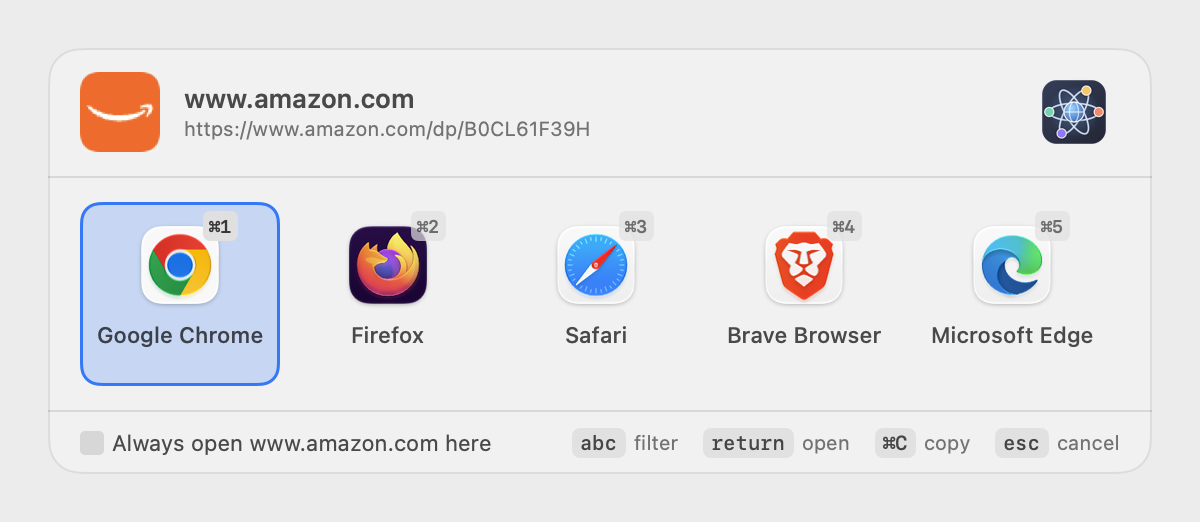
Anatomy
- Header — the site icon, badged with the icon of the application the link came from, then the domain and the full address. On the right, the AutoBrowser icon opens a small menu: Settings…, Credits…, Quit AutoBrowser.
- Tiles — one per browser or per profile. Each carries its shortcut key as a badge, and can be tinted with the color chosen for that browser or profile.
- Footer — the Always open domain here checkbox, and a reminder of the keys.
Choosing a destination
- Click a tile, or press Return to open the selected tile.
- Press the key shown in the badge — it depends on the chosen shortcut mode (see below).
- Check Always open domain here before choosing: AutoBrowser creates the matching rule, placed at the top of the list.
Profiles on a second level
Depending on the Profiles in the picker setting (General tab):
- One tile per profile — all profiles side by side.
- Profiles on a second level — one tile per browser. A down arrow under the icon marks a browser with several profiles: choose it (click, Return, its key or ↓) to show its profiles, numbered again from 1. ↑, Escape or the ‹ Browser pill in the header go back to the browsers.
A browser with only one visible profile opens that profile directly.
Keyboard shortcuts
| Key | Action |
|---|---|
| Badge key | Open the matching tile |
⌘1 … ⌘9
|
Open the tile at that position, in every mode |
← → ⇥
|
Move the selection |
↓ |
Show the profiles of the selected browser |
↑ |
Go back to the browsers |
⏎ |
Open the selection |
⌘C |
Copy the link and close the picker |
⌘, |
Open the settings |
⎋ |
Go back to the browsers, then close without opening |
⌘Q |
Quit AutoBrowser |
Shortcut modes
The mode is chosen in the Appearance tab, Picker shortcuts section. The tile badges and the footer reminder adapt to it.
| Mode | Badges | How it works |
|---|---|---|
| Search |
⌘1 ⌘2 ⌘3
|
Typing text filters the tiles by browser or profile name; Delete erases. |
| Function keys |
F1 F2 F3
|
By position, up to F12. |
| Digits |
1 2 3
|
By position. The physical key is what counts: on a French AZERTY keyboard, & gives 1, é gives 2… The numeric keypad works too. |
| Initials |
C F S
|
C Chrome, F Firefox, S Safari, E Edge, B Brave, T Tor, O Opera; other browsers use the initial of their name. Then, on the second level, the profile’s initial. |
| Custom | your choice | The key entered for each browser and profile in the Browsers tab. A profile without a key uses its browser’s. |
In Initials or Custom mode, when several profiles of the same browser share a letter, that letter groups them on a second level: C then D opens Chrome’s “Damien” profile.
Several links in a row
If more links arrive while the picker is open, they wait their turn: the next picker opens as soon as you have chosen or cancelled.
See also: Overview · Browsers and profiles · Rules · Settings