AutoBrowser — Settings
Open the settings from the menu bar menu (Settings…, ⌘,), from the picker menu, or by relaunching AutoBrowser from the Finder or Spotlight. The Browsers and Rules tabs have their own pages: Browsers and profiles, Rules.
General
Default browser
- Shows whether AutoBrowser receives links from the system. Without this status, it receives none: Set as default… asks macOS for it.
- To go back, choose another default web browser in System Settings → Desktop & Dock.
Links no rule matches
- Show the picker — see Picker.
- Open directly in — a fallback browser or profile; the picker no longer appears. The picker layout settings below are then dimmed.
Profiles in the picker
Two illustrated cards: One tile per profile, or Profiles on a second level — see Picker.
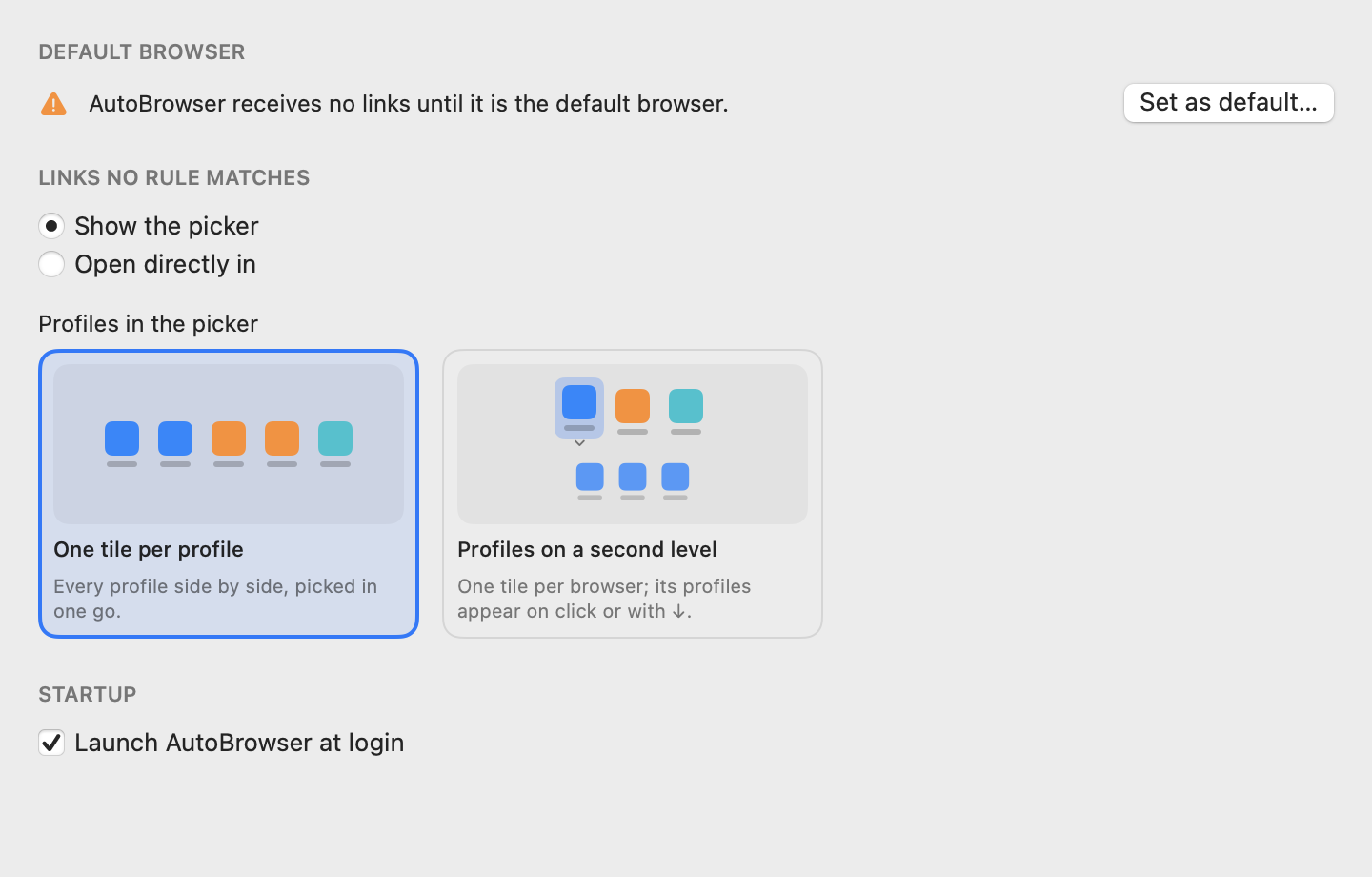
Startup
- Launch AutoBrowser at login — recommended: when the app is not running, no link is routed.
Appearance
Theme
- System, Light or Dark — applies to the settings and to the picker, without relaunching.
Language
- System language (default) or one of the 23 translated languages. The change takes effect at the next launch: Relaunch restarts AutoBrowser right away.
Picker shortcuts
Five modes: Search, Function keys, Digits, Initials, Custom — see Picker.
Menu bar
- Show icon in the menu bar (on by default). When hidden, open the settings by relaunching AutoBrowser from the Finder or Spotlight, or from the picker menu.
URL handling
Tracking parameters
- Strip tracking parameters from URLs — on by default.
- The list of removed parameters, one per line; a trailing star acts as a wildcard (
utm_*).
Shortened links
-
Resolve shortened links before applying rules — on by default.
-
The list of shortener domains, one per line. Only these domains trigger a network request.
-
Restore default lists — resets the two lists above to their original values, without touching the rules.
Advanced
Configuration file
- The path of the
config.jsonfile, readable and editable by hand. - Show in Finder.
-
Change location… — choose a folder: the configuration is copied there, then saved there. A synced folder (iCloud Drive, Dropbox, Synology Drive…) shares your rules across several Macs. If the folder already contains a
config.json, AutoBrowser asks whether to Use this file or Replace it with the current configuration. The previous file is left in place. - Use default location — visible when another folder is in use.
Credits
Credits… (menu bar menu or picker menu) shows the version, a Buy me a coffee button to support the project, and the link to the publisher, 7app.
The window also offers Report a Bug or Suggest an Idea…, Online Help and the Project issue tracker. The form creates a request in the project's public issue tracker: choose Report a bug or Suggest a feature, enter your email address (required so we can reply; the tracker is public, so it will be visible there), a subject and a description. The AutoBrowser and macOS versions are attached automatically. The same form opens from the menu bar menu and from the picker's icon menu.
Languages
The interface follows the macOS language, unless another one is chosen in the Appearance tab. It is translated into 23 languages, including French, English, German, Italian, Spanish, Portuguese, Japanese and Simplified Chinese.
See also: Overview · Picker · Browsers and profiles · Rules · Troubleshooting